
|
The Query Function: After the Query Contact our Solution Center for more details. |
|
The Query function will look at all the information and headings that you specified when the record or document was entered into A&L Document Console. Because A&L Document Console is an open filing system in which you make entries, having a logical and consistent method as well as a large-scale scheme of organization will definitely aid your filing procedures. As you build an integrated filing system for the computer to look after, using informative categories, titles, comments, etc., will help locate the documents and data that have been entered. Once a query has been activated, the Query Results window will appear, listing all the possibilities that satisfy your query or requested search. Double-clicking anywhere on one of the records listed will bring the record to the outline list. |
|
|
|
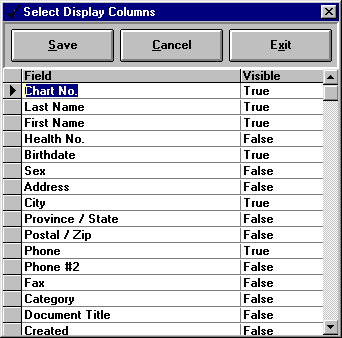
| Once a query has been completed, it is displayed in the Query Results window. Above the results, there is a COLUMN LAYOUT button. Clicking the mouse on the button displays the Column Settings dialog box. This feature allows for flexible customizing of whatever settings are shown on your Query Results screen. | |
|
|
You can change the column
layout so that it best suits your needs. All settings (or as few as you
like) can be displayed as part of the column settings. The settings are:
client number, last name, first name, health number (or reference number),
birthdate, sex, address, city, province/state, postal/zip code, phone
number, phone number #2, fax number, category, document title, creation
date, number of pages, and type code.
|
|
In cases where the column
settings extend beyond your window, enlarge the window and use the scroll
bars to view that which doesn't fit on the screen.
By clicking the mouse
on the appropriate Settings fields, you can select or change whether each
specification is shown (True) or not shown (False) as part of your column
layout by typing 'True' or 'False' under the 'Visible' field heading.
In cases where the column settings extend beyond your window, enlarge
the window and use the scroll bars to view what doesn't fit on the screen.
Once you have made your selections click EXIT.
You will then be asked if you wish to save your selections.
|
|
|
Document
Console Introduction | Document
Console - In Depth | Document
Handling
The Query Function | The Document Console Interface | Scanning In Document Console |
|