Subtopics within The Document Console Interface - The Outline Window: Customizing your documents (Document Info)
Contact our Solution Center for more details.
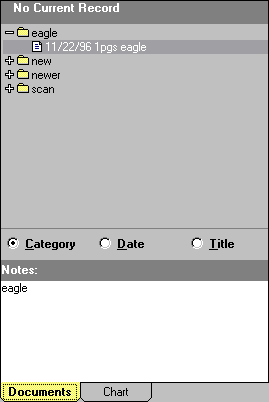
Each record is represented by a plus (+) sign and a file folder graphic. Clicking the mouse on the plus (+) sign expands a drop down list to display what documents are in this record or file folder.
You can extend as many or as few of the records or file folders as you like. The plus (+) sign then changes to a minus (-) sign and a list displays an outline of what documents are enclosed. If there are more documents than will fit on the screen, scroll bars will appear to the right side of the window. The listing in the Outline window contains the document date, document category, and the number of pages. Clicking the mouse on the minus (-) sign reverses the process and closes the drop-down listing.
You can choose any document by double-clicking the mouse anywhere on its line. Once it is chosen, the document will appear in the viewing window on the left-hand side of your screen. You can enlarge it by clicking on the FULL-SCREEN icon, or by clicking on the document itself. Each click directly on the document increases (or decreases) the viewing size in single increments toward its maximum or minimum.
Document
Console Introduction | Document
Console - In Depth | Document
Handling
The Query Function | The Document Console Interface | Scanning In Document Console
The Query Function | The Document Console Interface | Scanning In Document Console